How to Add a Character to the Assistant
How you add a character depends on the account it is linked to in Game of Vampires. Below you’ll find instructions for connecting a character through Google, VK, or Facebook.
Start Adding a Character
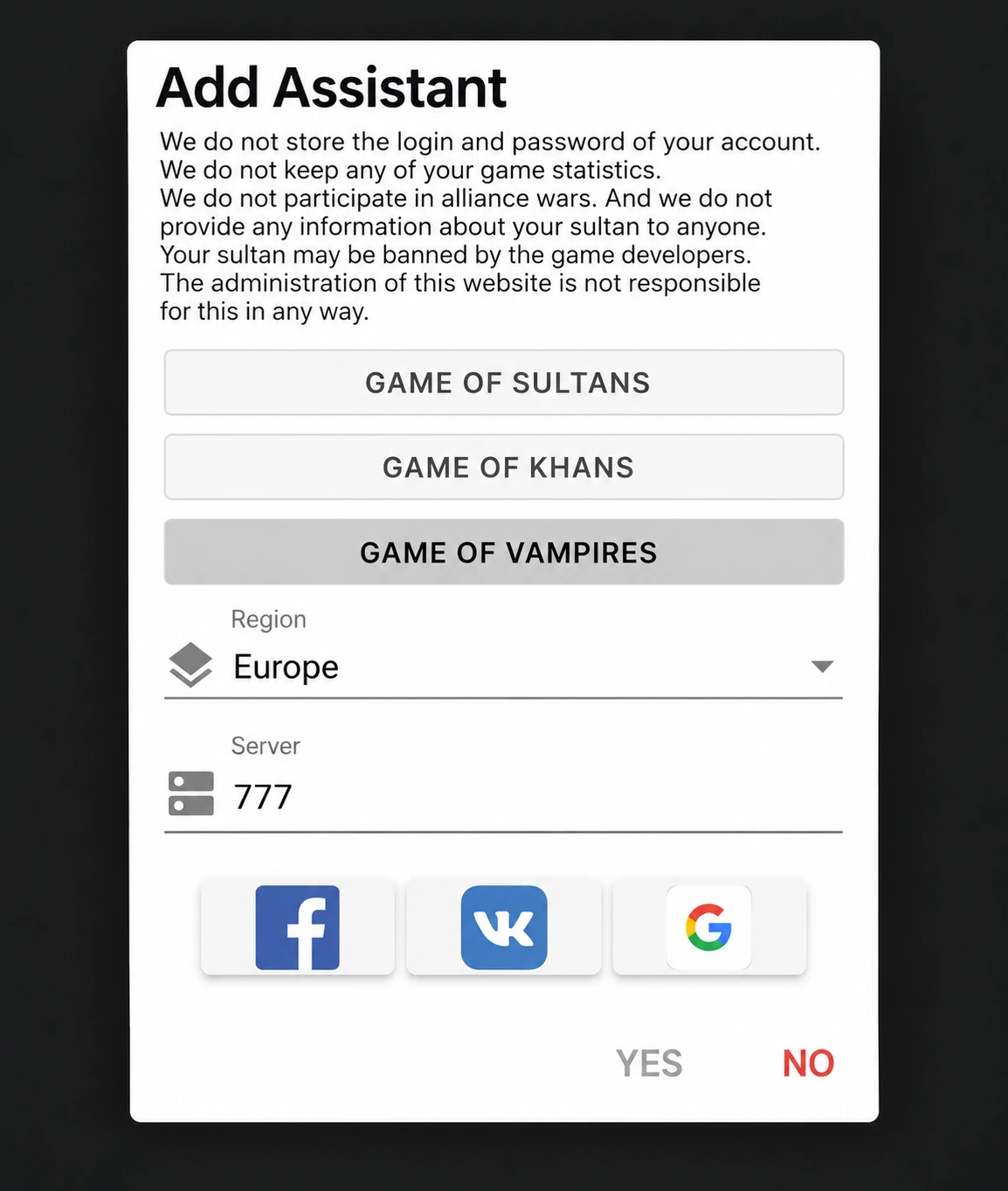
In the Assistant, open the “Assistants” tab and click the “+” icon.
Select “Game of Vampires”, choose your region and enter the game server number. Then select the login method linked to the character in the game: Google, VK, or Facebook.
Important
Choose the login method that is actually used for your game account. It does not have to be the same method you used to sign in to the Assistant.
Adding a Character via Google
Enter the game server number and click the Google icon.
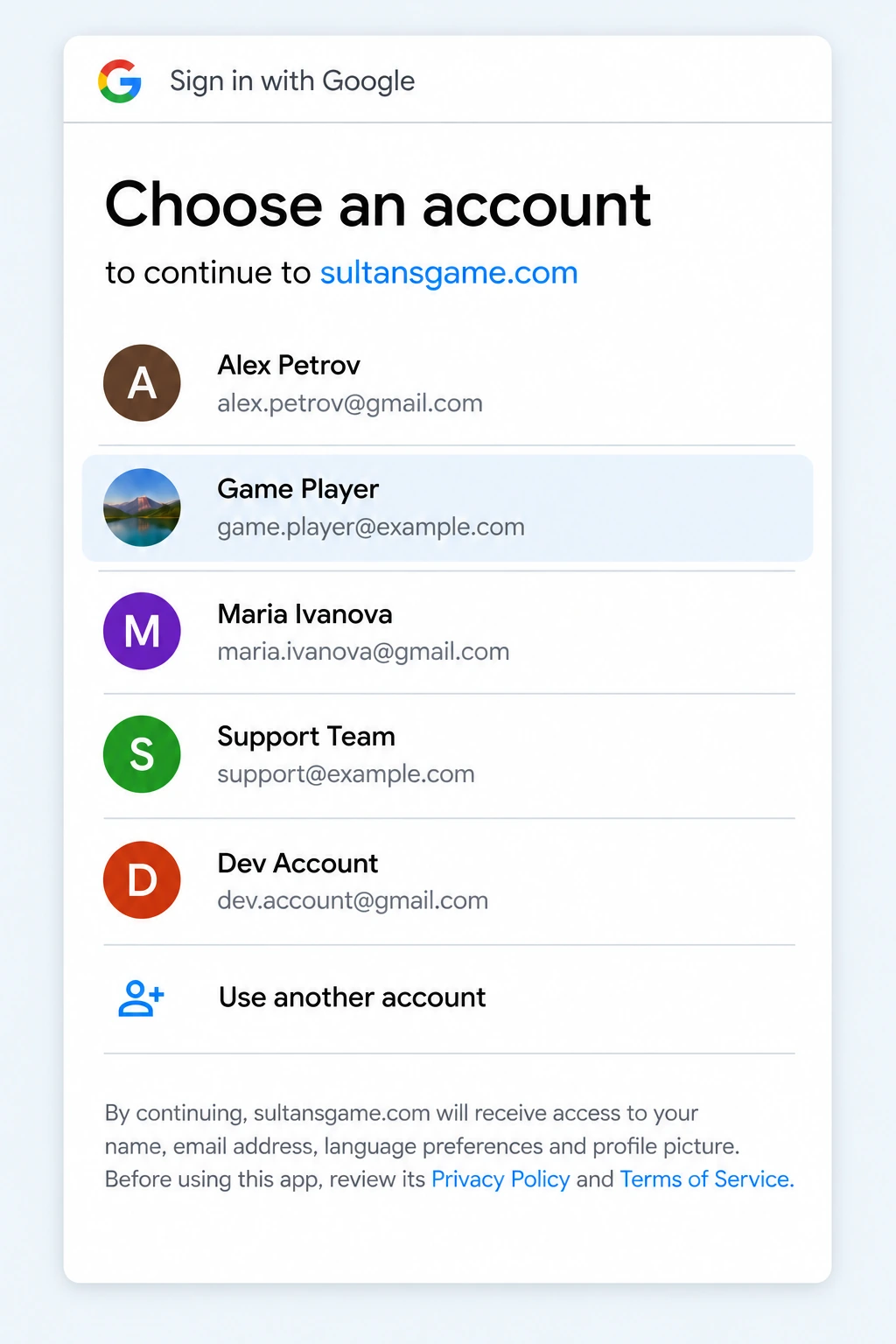
A Google account selection window will open. Choose the exact Google account linked to the character you want to add.
If the server and Google account are correct, the connection will be completed automatically.
After the character is added successfully, it will appear in the Assistant interface.
If You Have Multiple Google Accounts
Check carefully which account is selected. It must be the account linked to the character in the game.
Adding a Character via VK
If you have multiple VK accounts, before starting the connection make sure you are signed in, both in the VK app and in the browser version of VK, to the account linked to the character you want to add.
How to Add a Character via VK
- Enter the game server number.
- Click the VK icon.
- Click “VK Link”.
- In the window that opens, sign in with the VK account linked to the character in the game.
- After authorization, a blank page will load.
- Copy the full address of this page from the browser’s address bar.
- Paste the entire link into the corresponding field in the character-adding form.
- Confirm adding the character.
The copied address contains the required token. If everything is done correctly, the character will be added successfully and will appear in the Assistant interface.
Adding a Character via Facebook
A computer is required to add a character via Facebook. We recommend using Google Chrome.
Facebook may provide the authorization token in encrypted form, so connecting through Facebook is a little more complicated than through Google or VK. To obtain the token link, you will need to open your browser’s Developer Tools.
How to Add a Character via Facebook
- Open the character-adding window.
- Enter the game server number.
- Click “Facebook Link”. The Facebook authorization window will open.
- Sign in to Facebook. When the “Continue as…” button appears, do not click it yet. First press F12 or Ctrl + Shift + I.
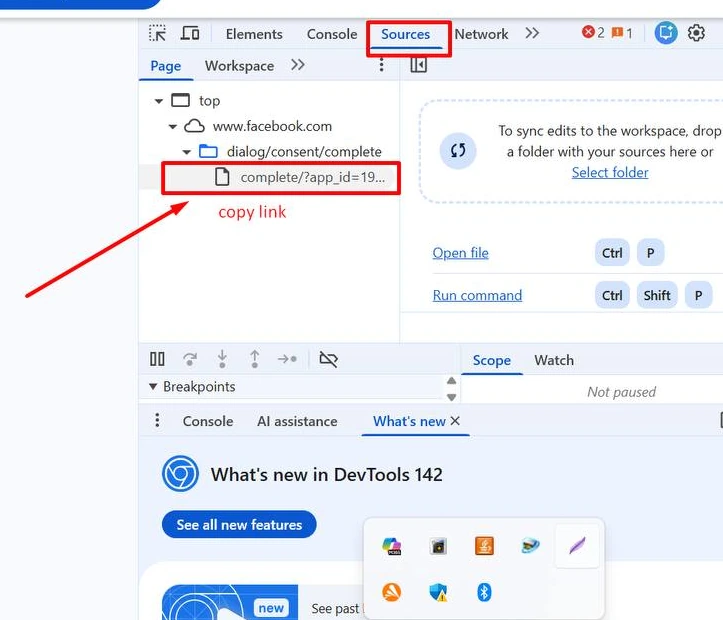
- The Developer Tools panel will open on the right. Go to the Sources tab.
- Only after that, click “Continue as…” in the Facebook window and complete authorization.
- After authorization, Facebook may show a blank page or an error message. This is normal.
- In the Sources panel, find the line shown in the screenshot below. Hover over it and copy the full address. This address contains the token required to add the character.
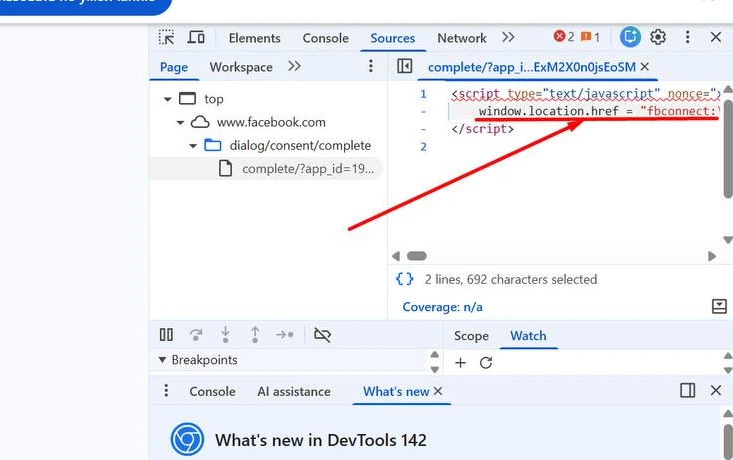
- If Facebook provided the token in encrypted form, open the file you found and copy the line shown in the screenshot below — the one containing window.location.href = …
- Paste the full link into the “Token link” field in the Assistant.
- Now get your Facebook ID. Click the paperclip icon to the right of the “Facebook ID” field.
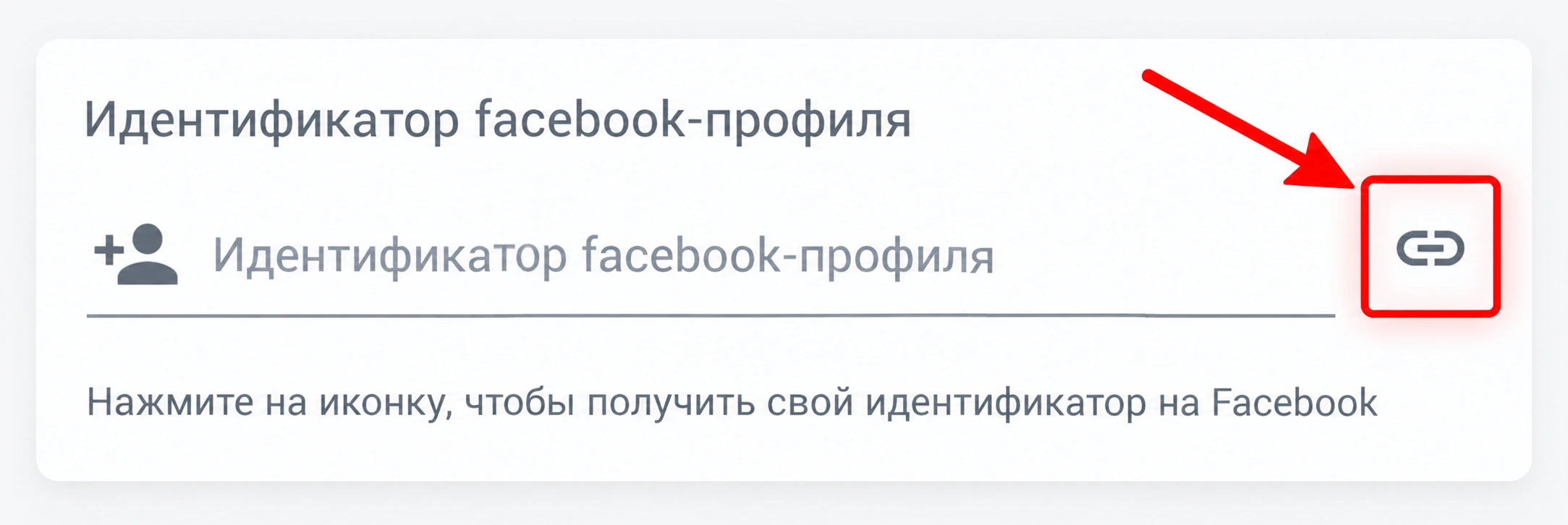
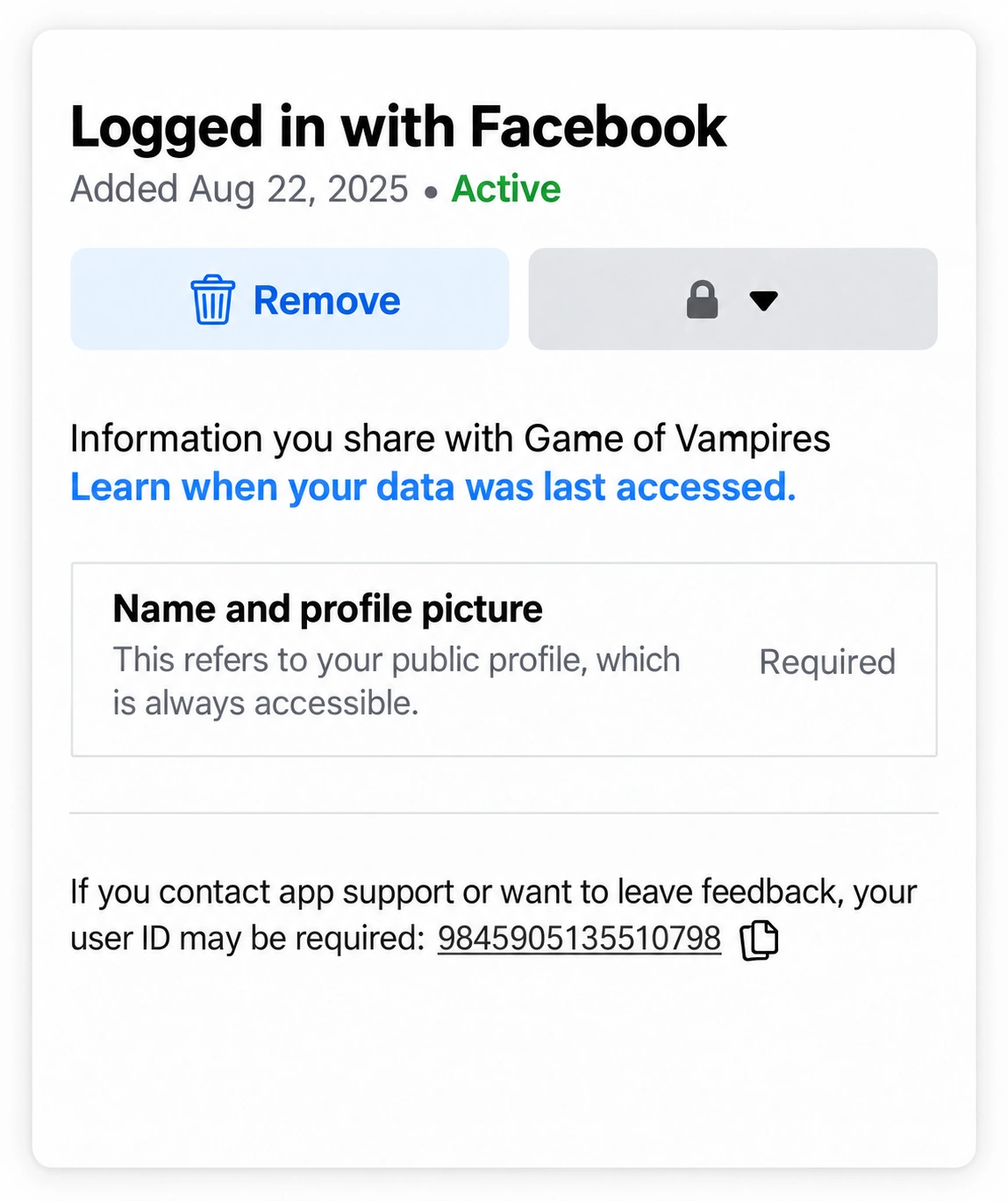
- A Facebook page will open. At the bottom of the page, find your Facebook ID, copy it, and paste it into the “Facebook ID” field in the character-adding form.
Done
Once the token link and Facebook ID are filled in, confirm adding the character.
Important
Do not close the Facebook window or Developer Tools until you have copied the token link. If a blank page or error message appears after authorization, this is expected in this case.
Character Added Successfully
After a successful connection, the character will appear in the “Game of Vampires” section of the Assistant interface.
The account row will show the game server, character name, and current Assistant status.
What’s Next?
After adding your character, activate the Assistant for the free trial period and test how it works with your account.